Australia loses millions of dollars to cybercrime each year. Malware attacks are a big part of this problem.
To keep your device safe, it’s key to know cybersecurity best practices. So, how do you stop malware attacks? Using a mix of security tips can greatly lower the chance of getting infected.
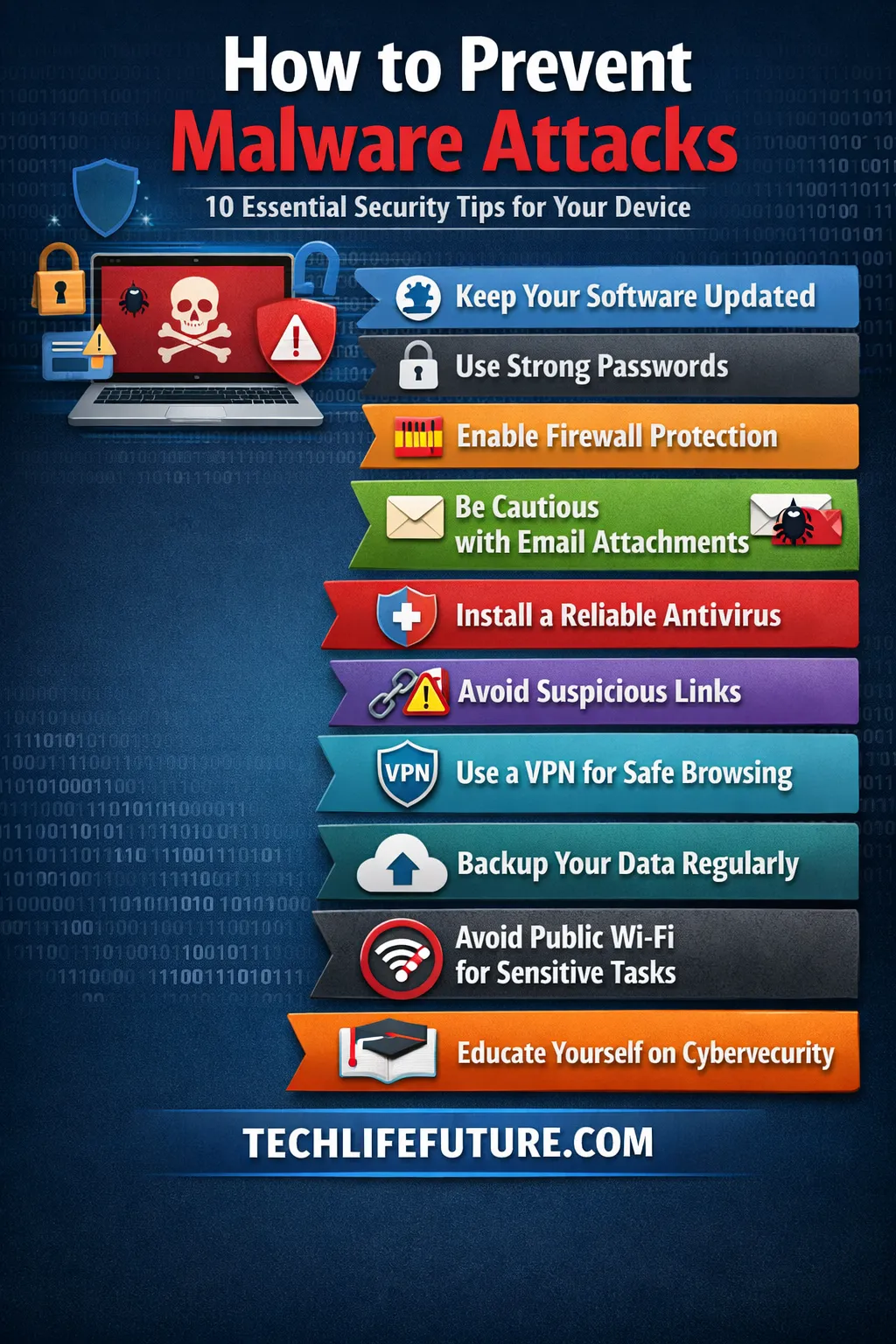
Good cybersecurity means being ahead of threats. By following the 10 key security tips in this article, you’ll be on the right path. You’ll learn how to prevent malware on your device and protect your online world.
What Is Malware and Why Is It Dangerous
In today’s digital world, malware is a big threat to our online safety. It’s harmful software made to damage devices, steal information, or mess with digital systems.
Malware comes in various forms, each with its own way of causing trouble. Knowing about these types is key to staying safe online.
Types of Malware
There are many kinds of malware, including:
- Viruses: These programs spread and attach to other software or files, causing harm or problems.
- Ransomware: It locks your files with encryption and asks for money to unlock them.
- Spyware: This sneaky software secretly watches and collects your personal data, often for bad reasons.
How Malware Infects Devices
Malware can get into your devices in different ways, like:
- Opening bad email attachments or clicking on fake links.
- Downloading software from unknown places.
- Using old software with known bugs.
Real Risks of Malware Attacks
Malware attacks can lead to serious problems, including:
- Stealing or losing your data.
- Money loss from ransom demands or stolen funds.
- Disrupting important services or work.
To avoid these dangers, it’s vital to follow malware protection tips. Keep your software updated and use good antivirus programs.
Keep Your Operating System and Software Updated
Keeping your device safe from malware starts with updating your operating system and software. Updates often patch security holes that malware could use.
Regular updates fix security vulnerabilities by closing the gaps malware targets. Keeping your system and software current greatly lowers the chance of malware attacks.
Why updates fix security vulnerabilities
Updates include security patches to protect your device from known weaknesses. These weaknesses are entry points for malware. By updating, you block these entry points, making it tough for malware to get in.
For more detailed information on how to enhance your cybersecurity, you can refer to our comprehensive cybersecurity guides.
Enabling automatic updates
Automatic updates are a smart way to keep your system current. This feature lets your device update itself, so you don’t have to. It ensures you always have the latest security patches.
To enable automatic updates, go to your device’s settings, find the update section, and choose to download and install updates automatically.
Risks of outdated software
Outdated software is a big security risk. It may have unpatched holes that malware can use. This can lead to malware infections, data breaches, and other serious issues.
Updating your software protects your device from malware. It also keeps your device running smoothly with the latest features and improvements.
Use Reliable Antivirus and Anti-Malware Software
To keep your device safe, it’s key to use good antivirus and anti-malware software. This software fights off many types of malware, like viruses, ransomware, and spyware.
Choosing Trusted Security Software
When picking antivirus and anti-malware software, choose a well-known product. Look for software that updates often and has a good track record. Microsoft’s security blog says keeping your security software up to date is crucial for fighting new threats.
Key Features to Look for:
- Real-time protection
- Regular updates
- Comprehensive malware detection
Real-Time Protection Benefits
Real-time protection is a must-have in antivirus software. It watches your device all the time for bad stuff and stops malware before it can harm. Google’s security blog says real-time protection is key to stopping malware.
Scheduling Regular Scans
Real-time protection is not enough. You should also set up regular scans to keep your device clean. Scans can find and remove malware that real-time protection might miss. It’s a good idea to scan your device at least once a week, depending on how much you use it.
By using good antivirus and anti-malware software, you can make your device much safer. This helps protect against malware, prevents ransomware attacks, and keeps your online activities secure.
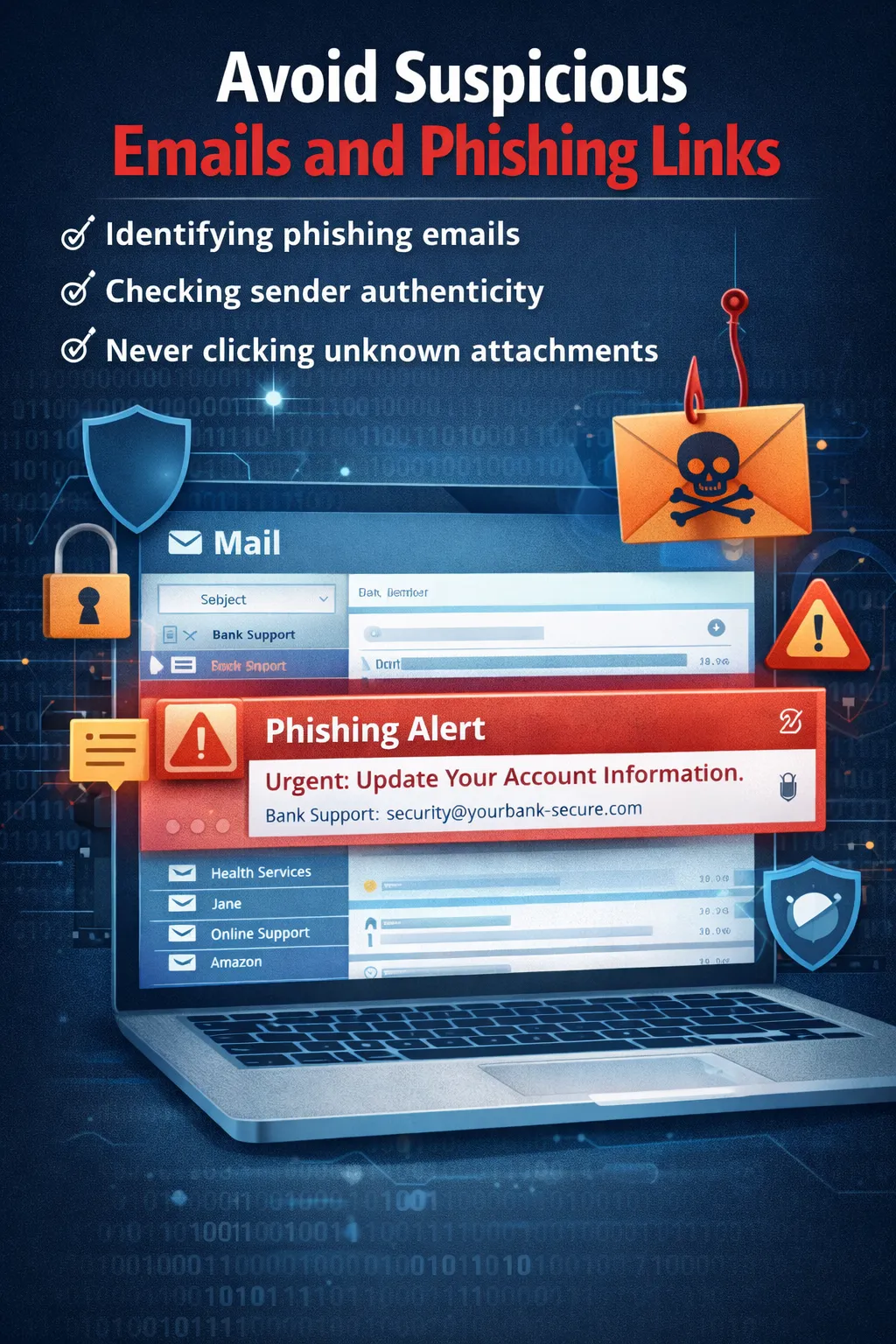
Avoid Suspicious Emails and Phishing Links
To keep your device safe from malware, it’s key to know about the dangers of suspicious emails and phishing links. Cybercriminals often use these methods to get your personal info or install malware on your device.
Identifying Phishing Emails
Phishing emails look real, pretending to be from trusted places like banks or big companies like PayPal or Microsoft. Look for signs like generic greetings, spelling errors, and urgent requests. These are often signs of phishing.
An email from your bank asking for your account details quickly might be a scam. Real banks usually call you by your name and give detailed info.
Checking Sender Authenticity
It’s also important to check if the sender is real. Scammers might use email addresses that look almost the same as real ones. For example, they might use “@micros0ft.com” instead of “@microsoft.com”.
To see if the sender is real, hover over their email address. Be careful of emails that ask you to click on links or download attachments from people you don’t know.
Never Clicking Unknown Attachments
Attachments from unknown senders can be very dangerous because they might have malware. Even if the email seems to be from someone you know, be careful if the attachment is unexpected.
If you get an unexpected invoice from a company you know, check it by calling the company directly. Don’t open the attachment.
By staying alert and following these steps, you can lower the chance of getting caught in phishing scams and malware attacks. This will help make your online world safer.
Download Software Only from Trusted Sources
Downloading software from trusted sources is a key way to avoid malware. This simple step can greatly lower the chance of your device getting infected.
Official App Stores vs Third-Party Downloads
Stores like Apple’s App Store and Google Play have strict rules. They check apps to make sure they’re safe. On the other hand, third-party downloads might not be checked as well, making them riskier.
Cybersecurity expert, Kevin Beasley, says, “Using official app stores can greatly lower your risk of getting malware.”
“The safest way to download software is through official channels. Third-party sites often host malicious versions of software that can compromise your device’s security.”
Risks of Cracked Software
Cracked software is tampered with to avoid paying for it. It’s a common source of malware. Using it can harm your device and hurt the developers’ income, slowing down new software.
For more on safe software use, check out our article on safe software practices.
Verifying Website Authenticity
Before downloading, check if the website is real. Look for “https” and a lock icon in the address bar. Be cautious of sites with lots of pop-ups or asking for too much info.
Ensuring a website is genuine and secure helps avoid malware. For extra safety on public Wi-Fi, use a VPN.
Being careful about where you download software can greatly improve your device’s security. It helps protect against malware attacks.
Use Strong Passwords and Two-Factor Authentication
Using strong passwords and two-factor authentication is a simple yet powerful way to protect your devices. This method greatly lowers the chance of someone getting into your accounts or devices without permission.
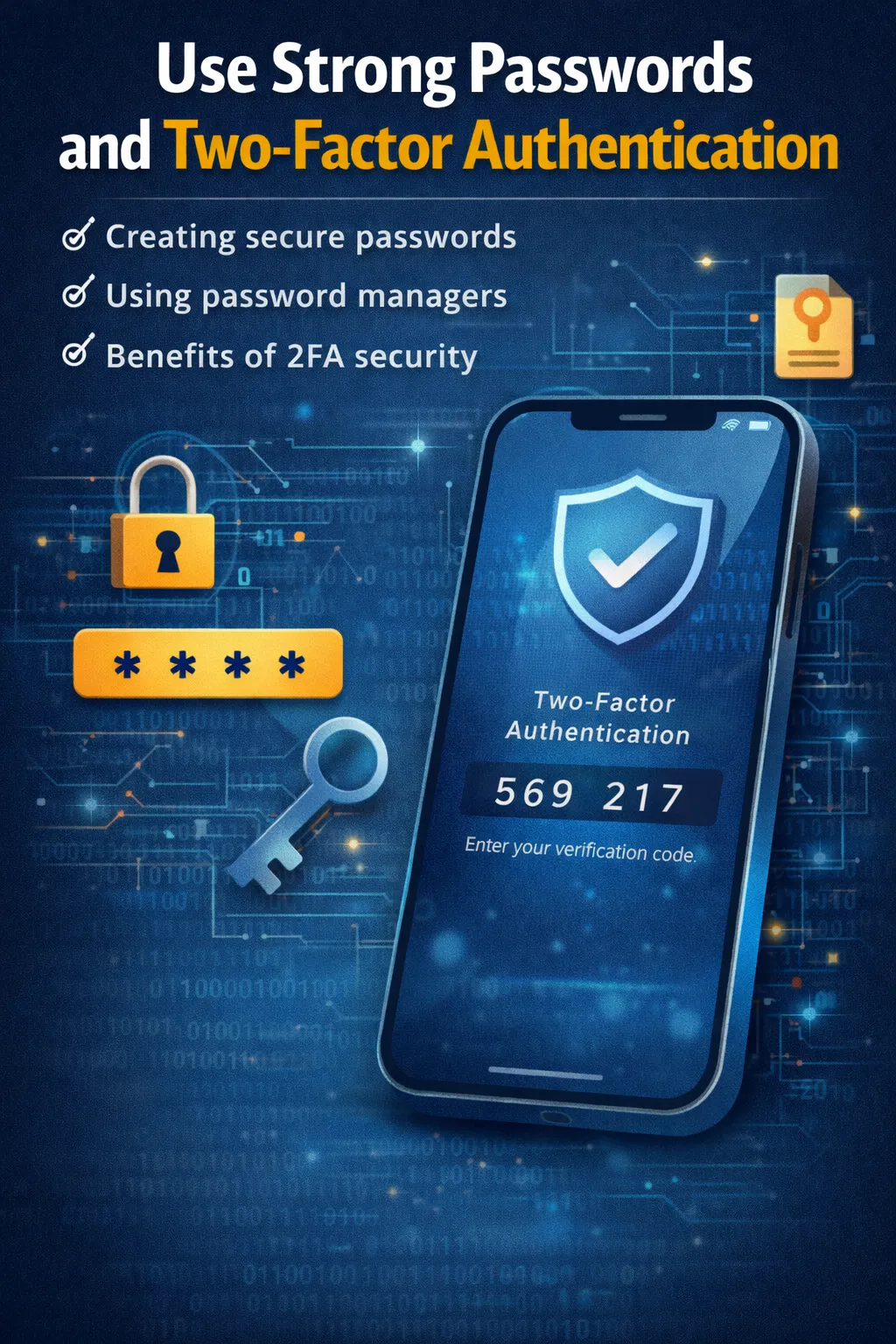
Creating Secure Passwords
Creating strong passwords is key to keeping your devices safe from malware and unauthorized access. A good password should be at least 12 characters long. It should mix uppercase and lowercase letters, numbers, and special characters.
Recent data from 2026 shows that weak passwords are a major reason for security breaches. Over 80% of hacking-related breaches are due to weak or stolen passwords.
Avoid using easily guessable information like your name, birthdate, or common words. Choose a passphrase or a sequence of random characters. It should be easy for you to remember but hard for others to guess.
Using Password Managers
Password managers are great for creating and storing complex passwords. They help you avoid using the same password for different sites. By 2026, over 50% of internet users will use password managers, showing their importance in keeping the internet safe.
Benefits of 2FA Security
Two-factor authentication (2FA) adds an extra layer of security to your accounts. It requires a second form of verification, like a code sent to your phone or a biometric scan. This makes it much harder for attackers to get in, even if they have your password.
The benefits of 2FA are clear: it provides a strong defense against phishing and password theft. It greatly improves your overall security.
Be Careful When Using Public Wi-Fi
Public Wi-Fi is handy but can be risky. It’s a hotspot for malware and cyber threats. Using it can expose your device to hackers and harmful software.
Risks of Unsecured Networks
Public Wi-Fi without encryption is a big risk. Hackers can easily grab your data. This can cause data theft, malware infections, and cyber threats.
Experts say using public Wi-Fi without care is like sending private info without protection.
“The biggest risk when using public Wi-Fi is that you’re on a network that’s not under your control, making it easier for attackers to intercept your data.”— Cybersecurity Expert
It’s key to know the dangers and take steps to protect yourself.
Using VPN Protection
A Virtual Private Network (VPN) can keep your device safe on public Wi-Fi. It encrypts your internet, making it hard for hackers to get your data. Pick a VPN that’s well-known for strong encryption and reliable service.
For more tips on staying safe online, check out our article on password security. It’s a great addition to these tips.
Avoiding Sensitive Transactions
Don’t do sensitive transactions like online banking or shopping on public Wi-Fi. If you must, use a VPN and make sure the site is secure (it should have “https” in the URL). Being careful with what you access or send over public Wi-Fi is key to secure online practices and stopping malware.
Knowing the risks of public Wi-Fi and protecting your device can greatly improve your online safety. It’s all about following good malware protection tips.
Regularly Back Up Your Data
Backing up your data regularly is a key way to keep your information safe. It’s a simple yet vital step that can shield you from the harm caused by malware, especially ransomware.
Why Backups Protect Against Ransomware
Ransomware attacks lock your files and ask for money to unlock them. With a recent backup, you can get your data back without paying the ransom. This saves you money and stops the attackers. Regular backups are a straightforward and effective cybersecurity best practice.
Cloud vs External Drive Backup
There are two main ways to back up your data: cloud storage and external drives. Cloud services like Google Drive, Dropbox, or OneDrive let you access your data anywhere and back it up automatically. External drives, on the other hand, offer a local backup that doesn’t need the internet. Using both methods together can provide comprehensive protection.
Setting Automated Backups
Setting up automated backups is the best way to keep your data safe. Most systems and backup software let you schedule backups. For example, Windows 10 has a built-in backup feature that can be set to back up your files regularly. macOS has Time Machine for automatic backups. Automating your backups ensures that your data is protected without requiring manual intervention.
By making data backups a regular part of your cybersecurity routine, you can greatly lower the risk of malware attacks. This, along with other cybersecurity best practices, will help protect your digital information.
Monitor Device Performance and Warning Signs
Keeping an eye on your device’s performance is key to spotting malware early. Regular checks help you catch issues before they get worse. This is a big part of malware defense strategies.
Slow Performance and Pop-Ups
Malware often makes your device slow. If it takes longer to start up or open apps, it might be infected. Also, too many pop-up ads, even when not online, are a red flag. The Australian Cyber Security Centre says malware can really mess with your device.
To fix slow performance, scan for malware with good antivirus software. Check your startup programs and turn off anything you don’t need. For pop-ups, try changing your browser settings or using an ad blocker.
Unusual Background Processes
Malware often runs in the background, using up resources without you knowing. Use your device’s task manager or activity monitor to find odd processes. If you find something suspicious, look it up online or ask a cybersecurity expert.
For tips on managing background processes, check out Microsoft Security Blog. It has lots of info on malware and how to deal with it.
Unexpected File Changes
Malware can also change your files or folders without you asking. This might include files being moved, renamed, or deleted. Some malware, like ransomware, might even lock your files and ask for money. Backing up your data regularly is a top online security tip to help you get back what’s lost.
To fight malware, be proactive. Always update your system and software, and use good antivirus and anti-malware tools. Be careful when downloading files or clicking links. By doing these online security tips, you can lower your risk of getting malware.
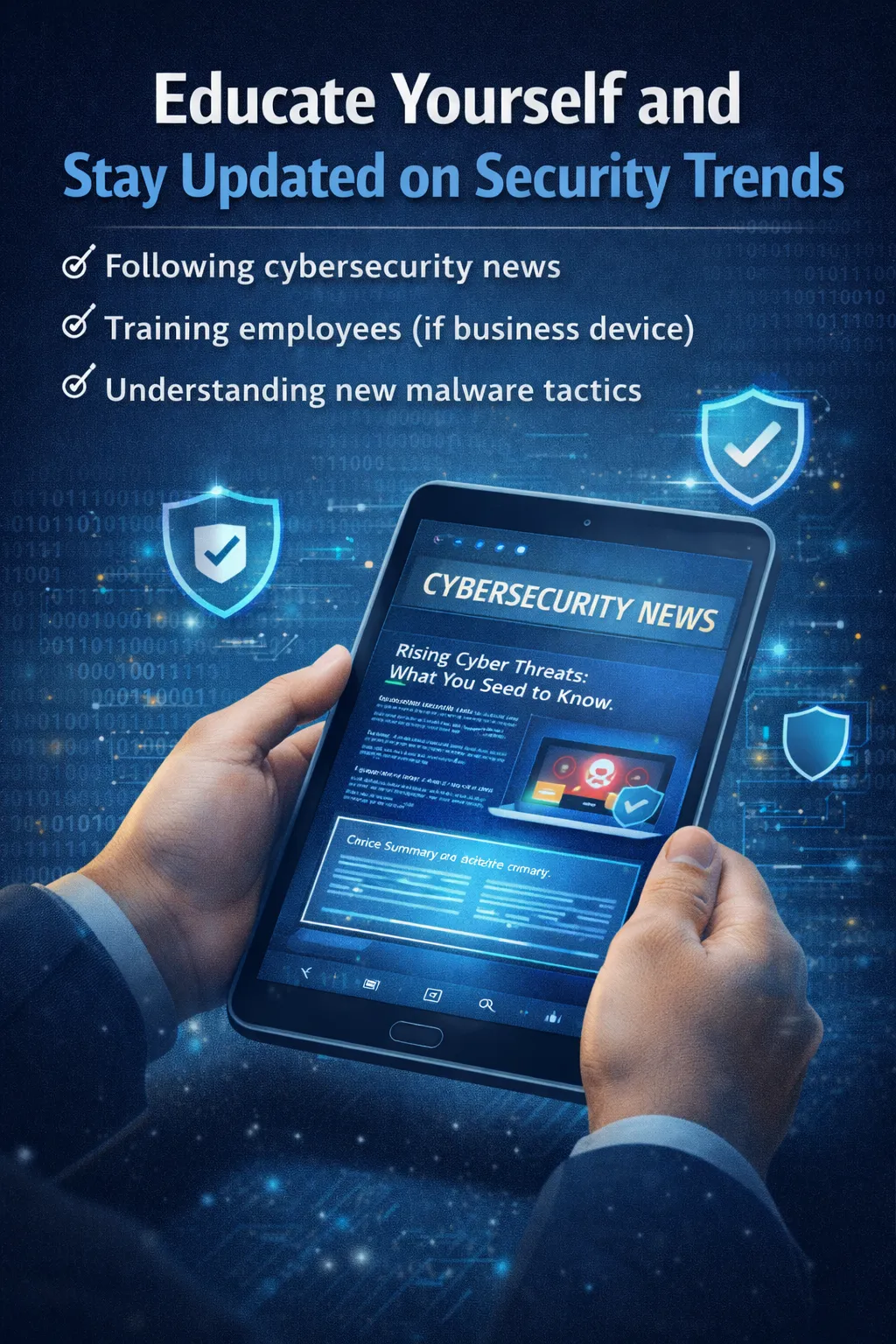
Educate Yourself and Stay Updated on Security Trends
To stop malware attacks, you must stay alert and know the latest in cybersecurity. It’s not just about knowing threats. It’s also about knowing how to fight them.
Following Cybersecurity News
Keep up with cybersecurity news from trusted sources. Sites like CyberScoop and Dark Reading share the latest on threats and security. This way, you can use cyber threat mitigation before problems start.
Training Employees
If you use a work device, teach your team about cybersecurity. They should know how to spot phishing, use strong passwords, and be careful with downloads. Training regularly boosts your malware prevention measures.
Understanding New Malware Tactics
Cybercriminals keep changing their ways. It’s vital to know these new tactics. This knowledge helps you use cybersecurity tips better and stay safe. Always check and update your security to keep malware at bay.
As a cybersecurity expert with over a decade of experience, I’ve seen the power of staying informed. By keeping up with security trends and being proactive, you can greatly lower your risk of malware attacks.
FAQ
Q1: What is the best way to prevent malware attacks on my device?
To stop malware attacks, keep your system and software up to date. Use good antivirus and anti-malware software. Stay away from dodgy emails and links. And, back up your data often.
Q2: How do I know if my device is infected with malware?
Look out for slow performance, pop-ups, and strange processes running in the background. Also, watch for unexpected file changes. These signs can mean your device has malware.
Q3: Can I get malware from a legitimate website?
Yes, malware can come from a trusted site if hackers hack it. Always check a site’s security before downloading anything.
Q4: How often should I update my antivirus software?
Update your antivirus software often. Set it to update automatically. This keeps you safe from new malware threats.
Q5: Is it safe to use public Wi-Fi?
Public Wi-Fi is risky because it’s not secure. Use a VPN to protect yourself. And, don’t do sensitive stuff online when using public Wi-Fi.
Q6: What is two-factor authentication, and how does it help prevent malware?
Two-factor authentication adds an extra step to log in. You need a code sent to your phone, besides your password. It makes it harder for malware to get in.
Q7: How can I protect my data from ransomware attacks?
To keep your data safe from ransomware, back it up regularly. Use a cloud or an external drive. Also, have good antivirus and anti-malware software.
Q8: Can malware be removed from my device?
Yes, you can remove malware with antivirus and anti-malware software. But, if it’s really bad, you might need a pro or a system restore.
Conclusion
Stopping malware attacks needs a mix of malware defense techniques. By using the 10 key security tips from this article, you can lower cyber threat risks. These tips include keeping your system and software up-to-date, using good antivirus, and avoiding dodgy emails and links.
It’s also important to be careful when using public Wi-Fi. These steps are key to preventing cyber attacks and keeping your device safe. Backing up your data, watching your device’s performance, and keeping up with security news are also crucial.
By doing these things, you can guard your device against malware and cut down data breach risks. Remember, preventing malware attacks is a constant effort that needs your attention and action. Stay alert and use these important security tips to protect your device and data.
About the Author & Disclosures
John Cosstick is Founder-Editor of TechLifeFuture.com and winner of the 2024 BOLD Award for Open Innovation in Digital Industries. He is a former banker, accountant, and certified financial planner.
He is now a freelance journalist and author. John is a member of the Media Entertainment and Arts Alliance (Union). You can visit his Amazon author page by clicking HERE.
Reference Links:
- https://www.cisa.gov/MFA
- https://www.nist.gov/itl/smallbusinesscyber/guidance-topic/multi-factor-authentication
- https://cheatsheetseries.owasp.org/cheatsheets/Multifactor_Authentication_Cheat_Sheet.html
- https://learn.microsoft.com/en-us/defender-endpoint/malware/prevent-malware-infection
- https://learn.microsoft.com/en-us/defender-endpoint/microsoft-defender-antivirus-windows
- https://support.microsoft.com/en-us/windows/protect-my-pc-from-viruses-b2025ed1-02d5-1e87-ba5f-71999008e026
- https://www.oaic.gov.au/privacy/privacy-guidance-for-organisations-and-government-agencies/preventing-preparing-for-and-responding-to-data-breaches/preventing-data-breaches-advice-from-the-australian-cyber-security-centre
- https://support.google.com/a/answer/9157861